Managing Workspace Users
You can invite users to a Workspace, update their roles, and delete them when needed. There is no limit on the number of users you can invite. A single user can belong to multiple Workspaces simultaneously.
Prerequisites
-
You are on the Business Critical plan in Hevo.
-
You must be assigned the Team Administrator role at the vendor or client level.
Inviting Users to a Workspace
You can invite one or more users to a Workspace at a time. To invite a user to a Workspace, perform the following steps:
-
In the Navigation Bar, click the Settings (
 ) icon.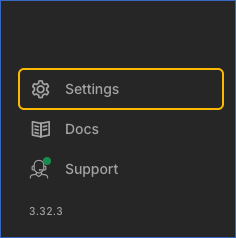
-
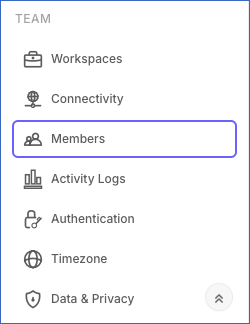
In the Settings sidebar, under TEAM, click Members.
-
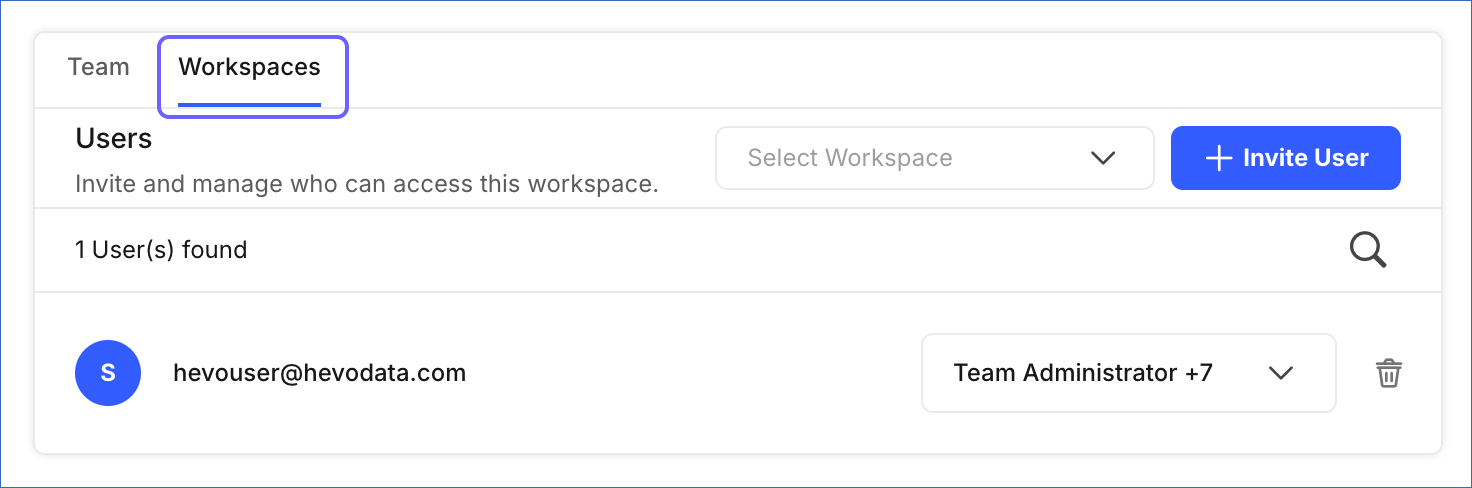
Click the Workspaces tab.
-
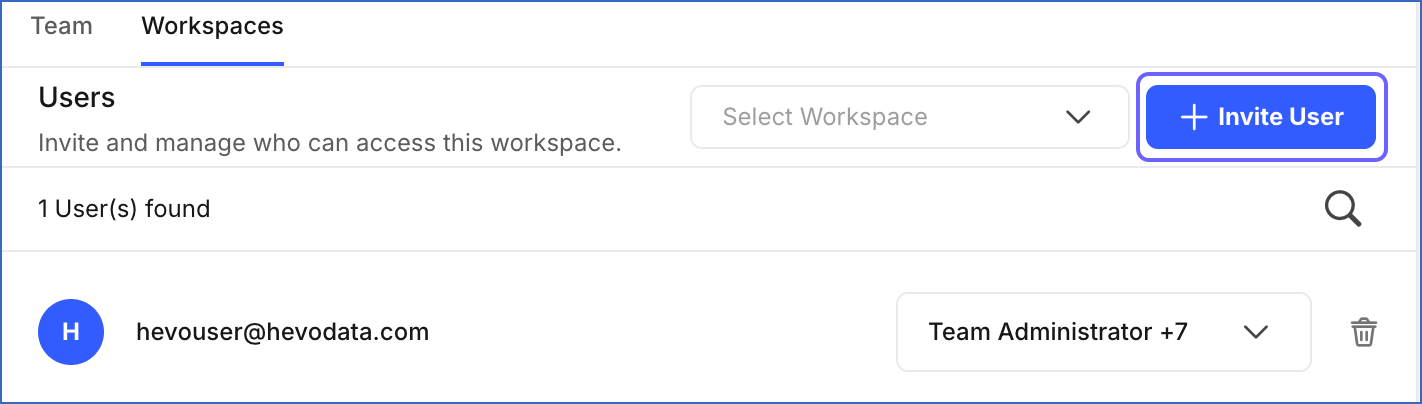
Click + Invite User.
-
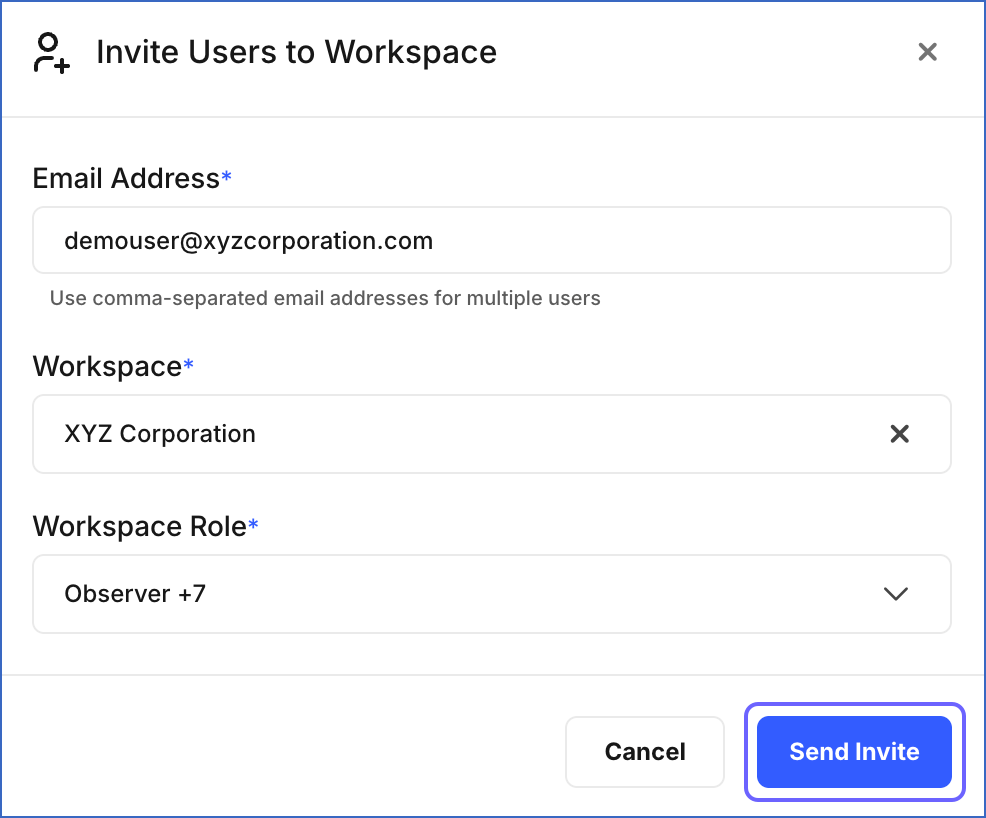
In the Invite Users to Workspace pop-up window, specify the following and click Send Invite:
-
Email Address: Specify the email ID(s) of the user(s) you want to invite to the Workspace. Use commas to separate multiple email IDs.
-
Workspace: Select the Workspace from the drop-down to which you want to invite the user(s).
-
Workspace Role: Select the role that you want to assign to the user(s). For more information on roles and their permissions, read User Roles and Workspaces.
Note: By default, every new member is assigned the Observer role.
-
The user is immediately added to the Workspace and appears in the member list.
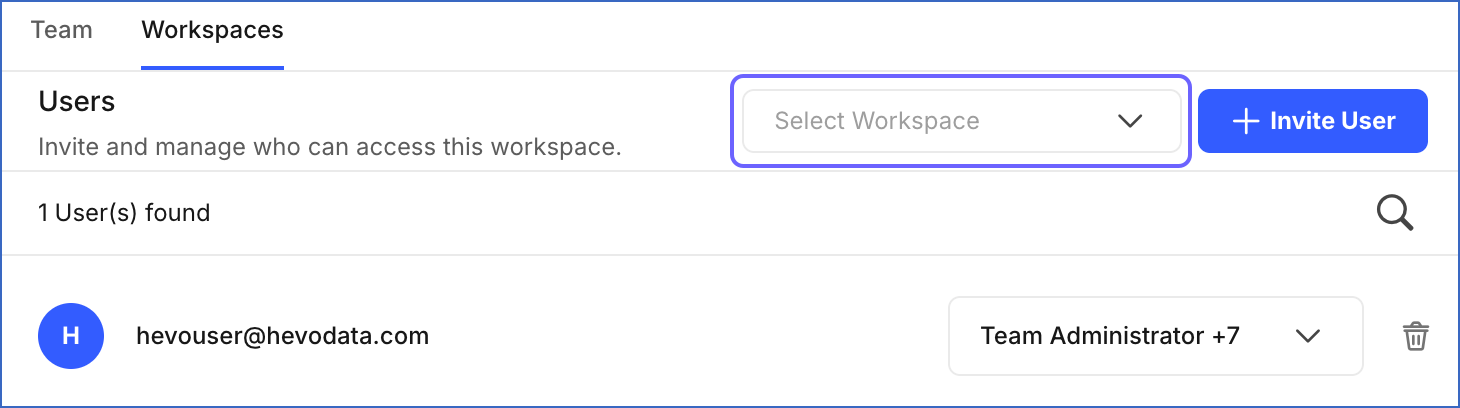
You can view the users in a Workspace. To view users in other Workspaces, select the Workspace from the Select Workspace drop-down.
Updating a User’s Role
You can update the roles assigned to a Workspace user at any time. A user can hold multiple roles simultaneously.
To change a user’s role, perform the following steps:
-
In the Navigation Bar, click the Settings (
) icon. -
In the Settings sidebar, under TEAM, click Members.
-
Click the Workspaces tab.
-
In the Select Workspace drop-down, search for and select the Workspace that contains the user whose role you want to update.
-
Click the role drop-down for the user whose role you want to update, and select or deselect roles as needed. You can assign multiple roles to a user simultaneously.
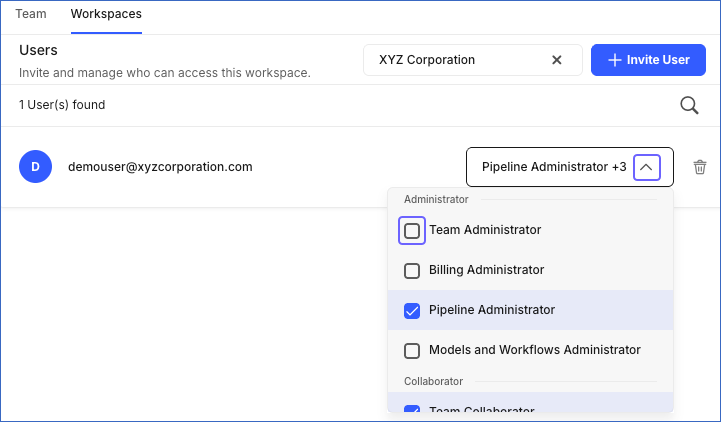
The user’s role is updated immediately.
Deleting a User from a Workspace
Deleting a user revokes their access to the Workspace. This does not affect their Hevo account or their access to any other Workspaces they belong to.
To delete a user from a Workspace, perform the following steps:
-
In the Navigation Bar, click the Settings (
) icon. -
In the Settings sidebar, under TEAM, click Members.
-
Click the Workspaces tab.
-
In the Select Workspace drop-down, search for and select the Workspace that contains the user you want to delete.
-
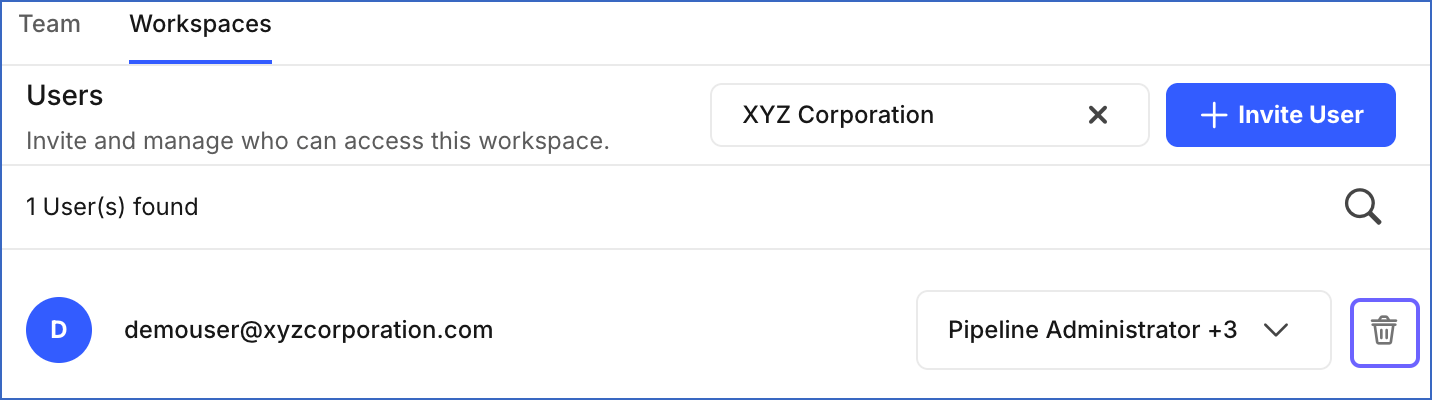
Click the delete icon for the user you want to delete from the Workspace.
-
In the confirmation dialog that appears, click Yes, Delete.
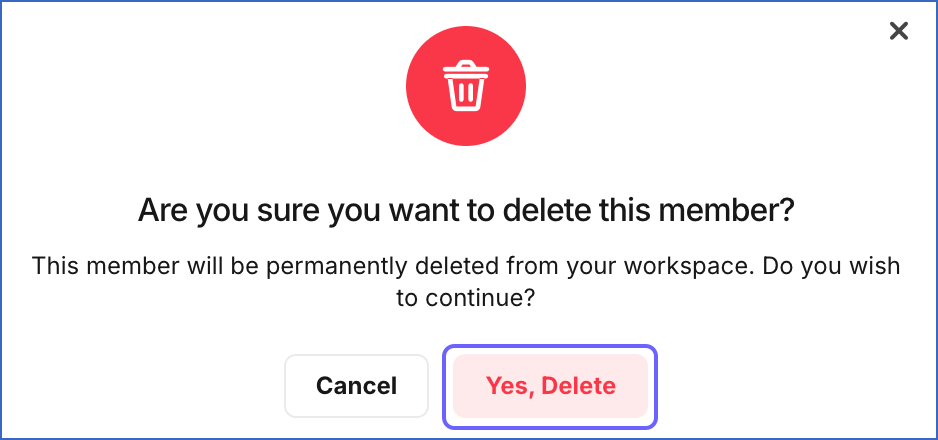
Hevo immediately revokes the user’s access to the Workspace and deletes them from the member list.